Sign Up
Create a free Gudu SQLFlow account to start analyzing SQL and visualizing data lineage. The sections below walk you through signing up, logging in, what your account includes, and how to upgrade.
Try it first — no login required
You don't need an account to see what SQLFlow can do. As a visitor, you can run the built-in sample SQL straight away and explore column-level data lineage, the ER diagram, join relations, and call relationships — all without logging in.
The sample SQL is loaded for you when you open SQLFlow. You can also switch to a database vendor to load its corresponding sample query, then visualize the lineage to experience the feature end to end.
The catch is only at analysis time: as soon as you modify the sample SQL or paste in your own SQL and try to visualize it, SQLFlow prompts you to sign in. So:
- Explore the provided samples — free, no account.
- Run your own SQL or edit the samples — sign up (it's free, see below) and log in first.
Sign up

To create an account you need:
- A valid email address — this is where your activation link will be sent.
- A password of at least 8 characters.
After you submit the form, we send a confirmation email within 30 minutes. You can start using SQLFlow right away, but you must click the link in the confirmation email within 3 days — otherwise the account is locked and you will not be able to log in.
Log in

Once activated, log in with the email and password you registered.
What you get
Every new account starts with a 3-day free Premium trial. During the trial you have full access to SQLFlow. When the trial ends, the account is downgraded to Basic — at that point you can still log in and delete your account, but lineage, API access, and most other features are disabled until you upgrade.
Premium features
- Support for more than 20 database vendors
- Share and export data lineage results
- Access to all configuration settings
- Connect directly to a database and discover lineage instantly
- Up to 10,000 SQL queries per month
- Full REST API access, up to 10,000 calls per month
- Upload SQL files
- Support for Snowflake query history, Redshift logs, and more
Extend your trial to 30 days
Share SQLFlow on social media or write a blog post about it, then send us the link via this form — we will extend your Premium trial to 30 days.
Get your Secret Key
If you plan to use the REST API, you need a Secret Key in addition to your User Id. The Secret Key is generated from your account page — you can regenerate it at any time, which will invalidate the previous one.
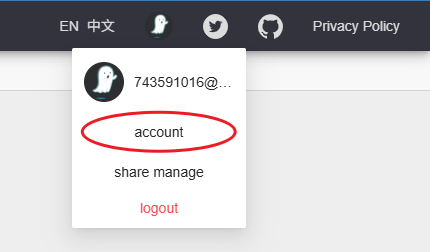
Step 1. After logging in, click your avatar in the top-right corner and choose account.
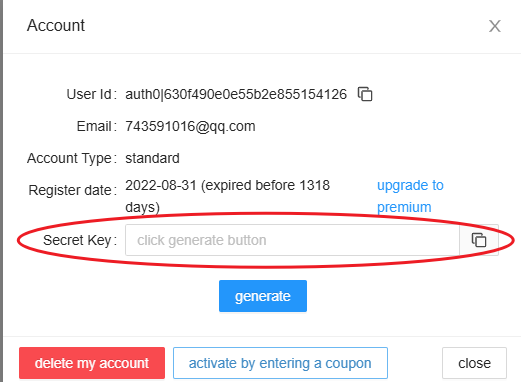
Step 2. In the Account dialog, click generate next to the Secret Key field. Copy the generated key with the copy icon and store it somewhere safe — you will use it together with your User Id when calling the SQLFlow API.
Keep it secret
Anyone with your User Id and Secret Key can call the SQLFlow API on your behalf. Do not commit it to source control or share it publicly. If it leaks, click generate again to rotate the key.